

Quickstart
This walks you from a clean checkout to a working briefMe call in under ten minutes. Everything runs on your machine — nothing to sign up for.
Before you start
Section titled “Before you start”You need:
- Node.js 20 or newer —
node --version - Git — for the
#N↔ commit linkage feature - An MCP-compatible coding agent — Claude Code, Codex, or anything that speaks MCP over stdio
The ten-minute path
Section titled “The ten-minute path”-
Clone and install
Terminal window git clone https://github.com/2nspired/pigeon.gitcd pigeonnpm install -
Run the setup wizard
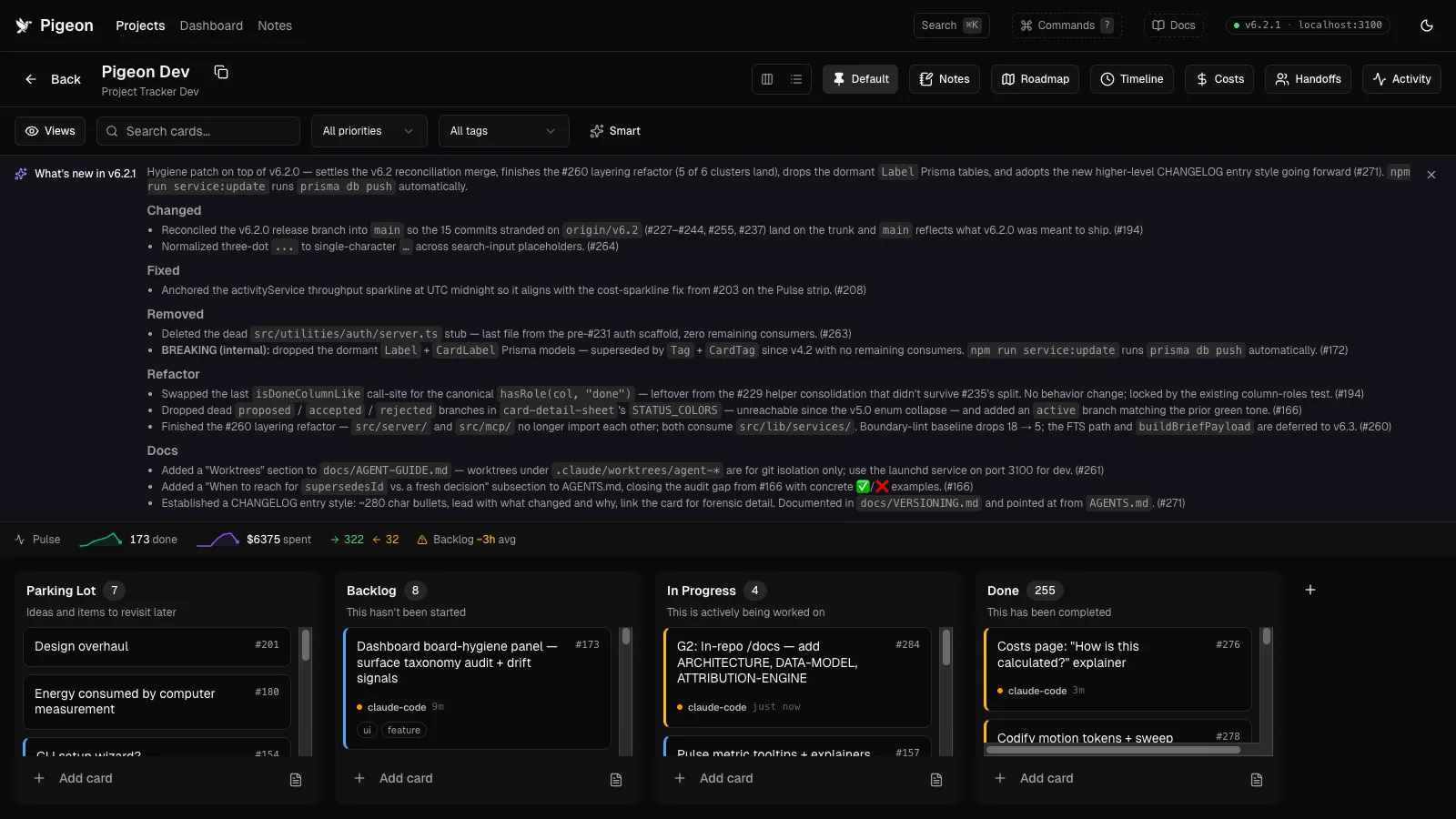
Terminal window npm run setupIt creates the SQLite database, optionally seeds a tutorial project with sample cards, and can connect an external project in one pass.
-
Start the UI
Terminal window npm run service:installRegisters the UI as a launchd service on port 3100. It starts on login and restarts on crash. Run
npm run service:updateafter pulling new code. Open http://localhost:3100.Terminal window npm run devOpen http://localhost:3000. First launch auto-creates the database if the wizard didn’t.
-
Connect one of your projects
From inside the project you want to track:
Terminal window /path/to/pigeon/scripts/connect.shThis does three things in one pass:
- Writes a
.mcp.jsonin the project root pointing at the tracker so your agent finds the MCP server. - Installs Pigeon’s slash commands (
/brief-me,/handoff,/plan-card) into.claude/commands/so they show up in Claude Code’s slash-command menu for this project. - Installs the Stop hook into
.claude/settings.jsonso the per-session token usage gets recorded to the Costs page automatically.
It’s idempotent — re-running on a project that’s already connected just refreshes whatever drifted. Run it on every project you want to track; run it again any time you upgrade Pigeon. Doing so is the right move on every project, every time.
Using a non-Claude agent?
Terminal window AGENT_NAME=Codex /path/to/pigeon/scripts/connect.sh - Writes a
-
Start a new chat and run
briefMeOpen a new session with your agent in the connected project. Ask it to run
briefMe. You’ll see a compact primer come back — roughly 300–500 tokens of: the last handoff, changes since then, top work-next candidates, blockers, recent decisions.That’s the loop. Every session starts this way.
Zero → briefMe, visually
Section titled “Zero → briefMe, visually”flowchart LR
A[Clone repo] --> B[npm install]
B --> C[npm run setup]
C --> D{UI choice}
D -->|macOS| E[npm run service:install]
D -->|Any OS| F[npm run dev]
E --> G[connect.sh in project]
F --> G
G --> H[Agent runs briefMe]
H --> I[Session primer returned]
After the wizard
Section titled “After the wizard”Once you have a board running, the next thing to read is The session loop — it’s the workflow the whole tool is built around.
If you want to give your agent a nudge toward using the tracker consistently, drop a short Project Tracking section into your project’s CLAUDE.md (or AGENTS.md). Example:
## Project Tracking
This project is tracked via Pigeon MCP. Call `briefMe()` at the startof each conversation. Reference cards by `#number`. Call `saveHandoff(...)`before wrapping up — in Claude Code, the `/handoff` slash command runs itfor you.
Keyboard shortcuts
Section titled “Keyboard shortcuts”The web UI supports a small set of shortcuts. More may be added over time.
| Keys | Where | What it does |
|---|---|---|
⌘K / Ctrl+K | Anywhere | Open the command palette |
← / → | Card detail sheet open | Step to the previous / next card in the current view’s visible order |
Esc | Editing title or description | Cancel edit and discard changes |
⌘↵ / Ctrl+↵ | Editing description | Save changes |
Arrow-key card navigation honors the active filters, hidden roles, and sort mode of the view you’re in. It won’t fire while a text input, select, or dialog has focus, so it stays out of the way while you’re editing.
When something goes wrong
Section titled “When something goes wrong”Run npm run doctor first — it’s the eight-check install diagnostic and prints a copy-pasteable fix for every failure. Then look up the symptom on the Troubleshooting page, which covers the common failure modes (MCP not connecting, briefMe failing on missing repoPath, FTS5 half-state, schema drift, launchd label drift, stop-hook silently no-op’ing, old tool names that no longer resolve).
Two install-stage gotchas that aren’t on the troubleshooting page because they only fire once:
- Database is empty after clone —
data/tracker.dbis gitignored, so each install is fresh. Runnpm run setupornpm run devto create it. - Forked the repo and docs won’t deploy — the GH Pages workflow requires
Settings → Pages → Source → GitHub Actions. Set this once per fork before the first push.
For workflow-level pitfalls (skipping briefMe, prose-instead-of-structure handoffs), see the anti-patterns page — that’s a different category from the install-and-config failures the troubleshooting page covers.
Read next
Section titled “Read next”- The session loop — the centerpiece workflow the whole tool is built around.
- Design rationale — the reasoning behind the constraints.
- Anti-patterns — the ways people trip themselves up.
- MCP tools — reference for every tool the agent can call.